Profile
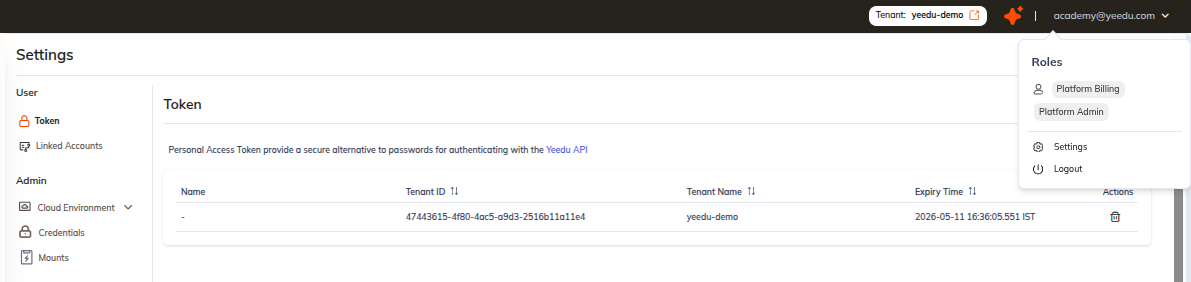
The Profile menu shows details about the currently signed-in user, including the roles assigned to that user, and it's the entry point to Settings. The two belong together, because those roles determine which Settings pages we render: somebody without administrative rights sees the USER group by itself, without the shared platform resources listed underneath it.
It's the one navigation element present on every page of the application.
How to Access
- Click your username, displayed at the top-right corner of every page.
- A dropdown appears.
What It Displays
The dropdown contains three items, in order:
| Item | Description |
|---|---|
| Roles | The role or roles assigned to the signed-in user, rendered as chips (observed value: Platform Admin) |
| Settings | Opens the Settings page |
| Logout | Signs the user out of the application |
Settings navigation
Selecting Settings opens a page with a two-group left rail:
USER
| Page | Route | Purpose |
|---|---|---|
| Token | /settings/user-token | Generate and revoke Personal Access Tokens for the Yeedu API |
| Linked Accounts | /settings/linked-accounts | Connect a Git provider and store its access credentials — see Git Credentials (Linked Accounts) |
ADMIN
| Page | Route | Purpose |
|---|---|---|
| Cloud Environment | /settings/cloud-environment | Manage cloud environments. Expandable to two sub-pages: Networks and Bootdisks |
| Credentials | — | Manage cloud provider credentials |
| Mounts | — | Manage storage mounts |
The rail groups pages by audience: USER pages act on your own account, ADMIN pages act on shared platform resources. Which entries appear depends on the roles listed in the Roles section of the profile dropdown.